

 
|

|
What’s New in Version 7
In addition to the features and functions you used in version 6 applications, Apptricity has added new features and functionality to its version 7 applications to enhance your user experience.
The following are new in this release:
-
An updated user interface
-
A Desktop that is highly customizable and more interactive, allowing you quick access to information and your most common tasks
-
Apptricity SmartPins that allow you to customize the information you want to see on your desktop – your home base in version 7 applications
User Interface
Apptricity version 7 applications feature a new fluid, modular design. This flexibility enables almost endless customization of the “look and feel” of your application.
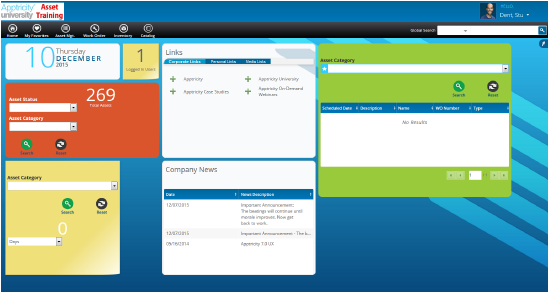
The Desktop
Apptricity 6.0 applications provide a single home page that lists some pre-selected information for you. With the version 7 Desktop, you can set up custom home screens based on a role and its permissions. You can Customize Your Desktop to display the information you want to be seen by each role.
There is no limit on the number of Desktops you can create.
You can create a Desktop that is either public or private. Your public Desktops are displayed in a list so that anyone can subscribe to them. Only you can view your private Desktops.
You can subscribe to any public Desktop that you would like to view, or you can clone a public Desktop and modify it for your own use; however, only the owner can change a Desktop.
Add Application-Specific SmartPins to provide information or a shortcut to a task you perform frequently.
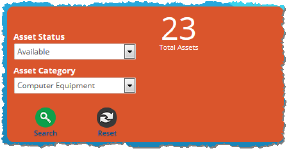
For more information about the Desktop, please see Customizing Your Desktop.
Apptricity SmartPins
In our version 7 applications, Apptricity is introducing a new feature called SmartPins.
SmartPins are programs that you add to your Desktop. Some SmartPins just display information, but others allow you to add, edit, or delete information. Some SmartPins, when clicked, display an application screen that enables you to work with data at a more detailed level.
Each version 7 application has its own SmartPins specific to it (Application-Specific SmartPins). Others, like the Calendar, Company News and Links SmartPins, appear in all version 7 applications.
Not all SmartPins are available to every user. Each SmartPin requires that you have the correct permission or role to use it. Some SmartPins are designed only for managers. If you do not have a manager role, you will not see the manager SmartPins in your list, for example.
For detailed information about SmartPins, please see the sections Add SmartPins to Your Desktop, and Application-Specific SmartPins in Customizing Your Desktop.