


|

|
Sign In to the Application
Your System Administrator provides the web address, your user name, and initial password.
After you log in to the application for the first time, you are required to change your password to ensure your data is secure. Be sure your new password complies with your organization’s password policy.
-
Type the web address in your web browser address bar.
-
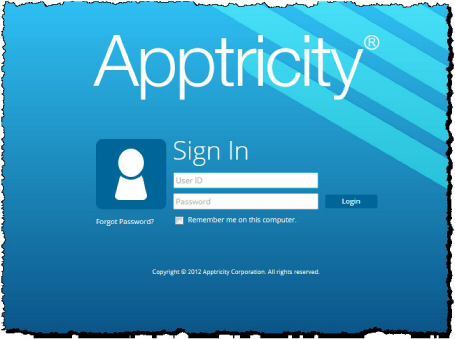
Press Enter to display the Sign In panel.
-
Type your user name in the User ID field.
-
Type your password in the Password field.
-
Click Login.
You can add this web address to your browser Favorites to ensure that you can easily access it the next time you log on to the application.
Sign In Issues
If you enter an invalid password or user name, the following message is displayed.
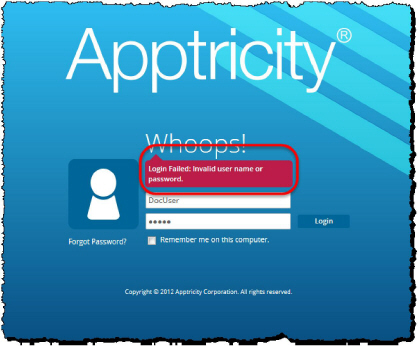
Please check your login information and try again.
If you have forgotten your password, click the Forgot Password? link on the panel. The application sends an email message with a new password to the email address listed in your user record.
Retrieve your Forgotten Password
If you have forgotten password, you can retrieve it using the Forgot Password? link on the Sign In panel.
-
Click Forgot Password.
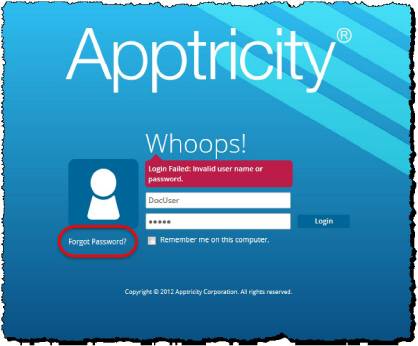
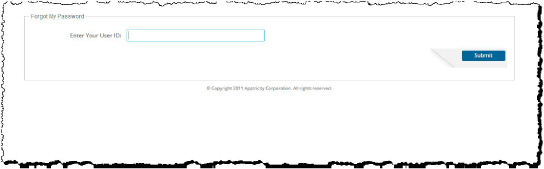
The Forgot My Password pane is displayed.
-
Type your user name in the Enter Your User ID field.
-
Click Submit. A temporary password is sent to the email address on your user record.
-
Open your email program, and open the message from the application.
-
Copy the temporary password in the email message.
-
Return to the Sign In panel.
-
Type your User ID and paste the temporary password in the appropriate fields.
-
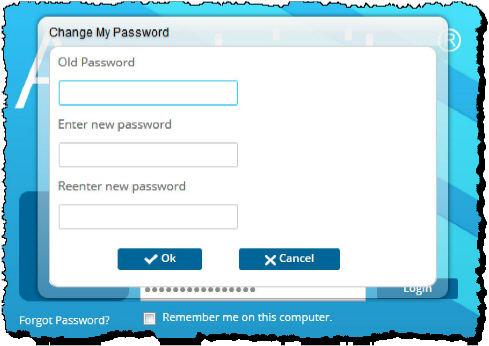
Click Login. The Change My Password box is displayed.
-
Type the password from your email message in the Old Password field.
-
Type a new password in the Enter new password field.
-
Type the new password again in the Reenter new password field.
-
Click OK. Your password is changed from the temporary password to the new password you entered.
Remember Me Link
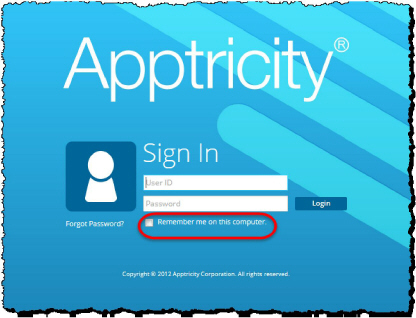
The application Sign In screen displays an option to Remember me on this computer, just under the User ID and Password fields.
-
Type your User ID and Password in the appropriate fields.
-
Click the box beside Remember me on this computer.
The application remembers your user name the next time you log into the same computer and displays it in the User ID field. You will still be required to enter your password manually.
If you log in to the same application on a different computer, you have to type both your User ID and Password.
-
Click Login.
Change Your Password When Required
Your organization may require that you change your password on a regular schedule. You can only change your password if you are logged into the application.
-
Select Change My Password from the User menu in the upper-right corner of the page. The Change My Password box is displayed.
-
Type your current password in the Old Password field.
-
Type your new password in the Enter New Password field.
-
Type your new password again in the Reenter New Password field.
-
Click OK. The application logs you out. You can now log in to the application using your new password.
