


|

|
Managing Surrogates
In Expense, you can add, edit, and delete Surrogate roles and assignments. To manage Surrogates:
-
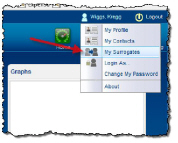
Select My Surrogates from the User Menu.
-
The Surrogate Users pane is displayed. Any existing surrogates that you have already added are listed here. Here, you can add, edit, or delete Surrogate roles and assignments.
Search for Assigned Surrogates
To view your assigned surrogates:
-
-
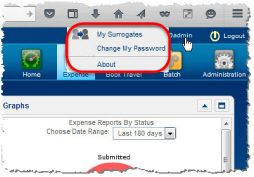
Hover over User in the upper right corner to display the User action menu.
-
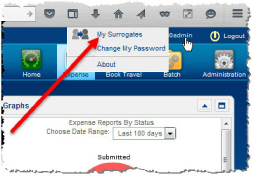
Click My Surrogates to display Surrogate Users.
-
View your list of assigned surrogates in the Surrogate Users pane.
-
Adding a Surrogate
You can add a Surrogate to perform your tasks when you are out of the office or unable to complete them for some reason. To add a Surrogate:
-
At the Surrogate Users pane, click Add New.
The Edit Surrogate User pane is displayed. The surrogate roles available for you to assign to other users are listed in the Available Surrogate Roles list.
-
Type a name in the Users field to locate and select the user whom you want to assign a surrogate role(s).
-
Drag the Surrogate Role(s) you want to assign from the Available Surrogate Roles list, and then drop it in the Assigned Surrogate Roles panel.
-
Enter the date the Surrogate designation should begin in the Start Date field, and then the date it should expire in the End Date field. Select the Receive Emails check box to have notification emails routed to the surrogate. Surrogates receive notifications for items they take action on and/or have responsibility for during their surrogacy time period.
-
Click Save to finish adding the surrogate.
The user that you designated as a surrogate will be able to serve in the roles you assigned only between the start and end dates you configured.
Editing a Surrogate
You may want to end a surrogate’s role before it is set to automatically expire, change the email setting, or you may want to simply change the effective dates. To edit a surrogate:
-
At the Surrogate Users pane, click the name of the surrogate you want to edit.
-
The Edit Surrogate User pane is displayed.
-
Edit the surrogate’s Start Date or End Date by adjusting the appropriate date parameters. Change the Receive Emails setting by selecting or de-selecting the check box. In this example, we changed the End Date to an earlier date.
-
To remove a role completely, click and drag the role from the Assigned Surrogate Role pane and drop it back into the Available Roles pane.
The role is removed from the surrogate’s assigned roles and appears in the Available Surrogate Roles list again.
-
Click Save when you are finished.
Deleting a Surrogate
If you have not set an end date for your surrogate, you can manually end the surrogate role by deleting the surrogate.
-
Hover over the User icon to display the User Action Menu.
-
Click My Surrogates to display the Surrogate Users pane.
-
Select the surrogate you want to delete in the Surrogate Users pane.
-
Click Delete in the lower Edit Surrogate Users pane.
-
Click Yes to delete the surrogate role.