
 
|

|
Application Interface
This section describes the various screen types and screen elements you will see in the application.
Apptricity recommends that your screen resolution be set to 1920 x 1080 to ensure that all screen elements display properly on your screen.
Home Page
The Home page is the first page displayed when you log on to the Apptricity application. Some users may request that their user account be set to skip the homepage. The System Administrator can change this setting for you.
The Home page has six panes as shown in the graphic below. Each pane is a quick source for information.
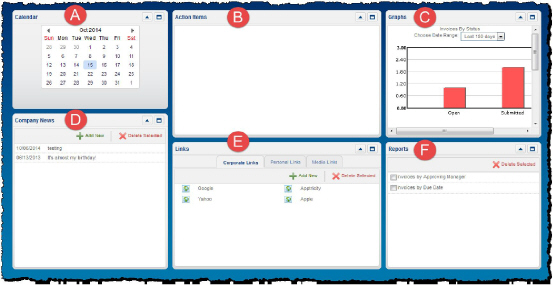
A: Calendar
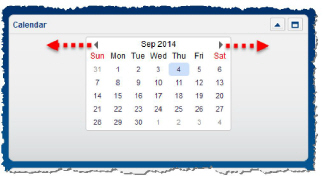
Each application provides a simple, easy-to-read calendar for your reference. The current day’s date is highlighted. Click the arrow in the upper left corner to view previous months. Click the arrow in the upper right corner for upcoming months.
B: Company News
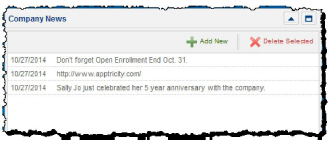
This pane displays links to information about your organization. The type of information displayed depends on your organization’s needs. Any user with the appropriate permissions and roles assigned can post text to this pane.
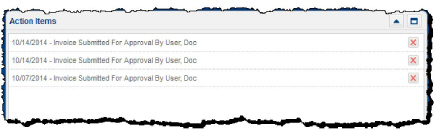
C: Action Items
The Action Items pane displays information that needs your attention. It may list invoices that need to be approved, or purchase orders submitted for approval that have been denied.
D: Links
In this pane, you can add web addresses for websites and media links that you visit often.
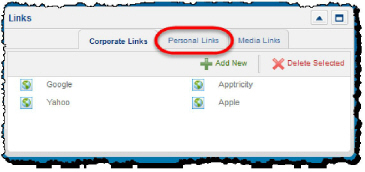
Corporate information is usually loaded by an Administrator. You can add links on the Personal links tab.
E: Graphs
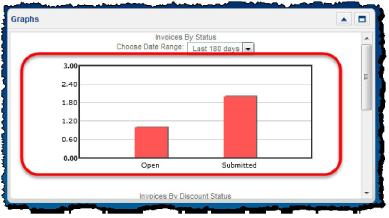
On the graphs pane, you can view information in comparative graphical format. For example, you may compare items in different statuses such as open invoices, open expense reports, or the number of disposed assets to the number of new assets. Select the date range you want to view.
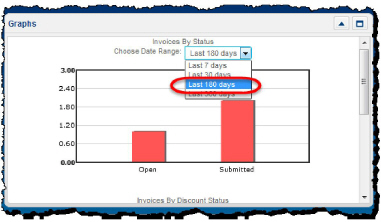
The following shows the result of your selection.
F: Reports
After you create a report through the reports menu, you can choose to save it to your Home Page. If you save the report, it is displayed in this pane for easy access (see Saving a Standard Report to Your Home Page).
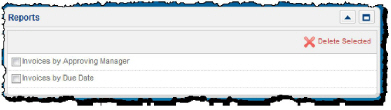
Double-click a report to view it.
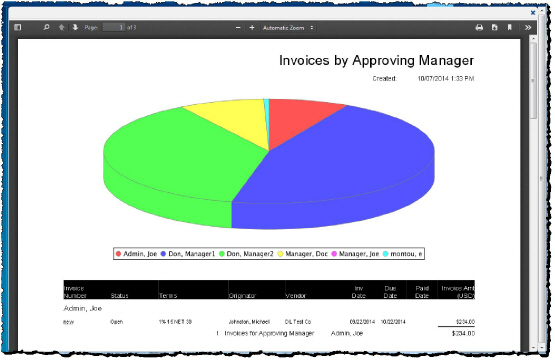
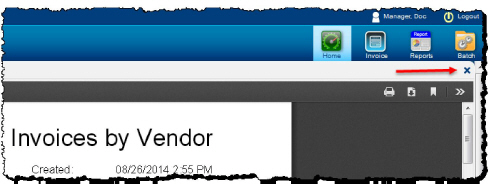
Close it by clicking the blue x in the upper right corner and return to the Home Page.
Home Page Pane Options
All Home Page panes can be minimized or maximized by clicking the arrows in the upper right corner of each pane. Clicking the arrow again toggles the view.
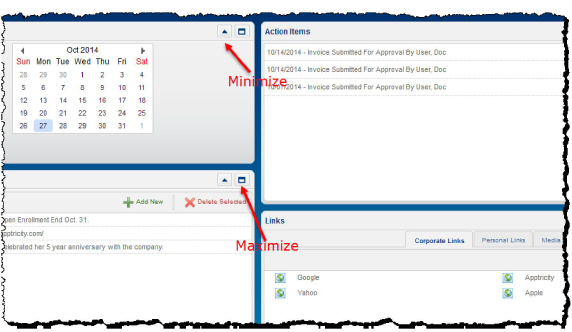
When you minimize a pane, only its title bar is shown.
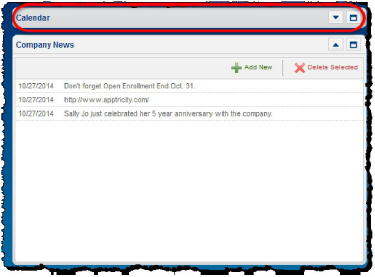
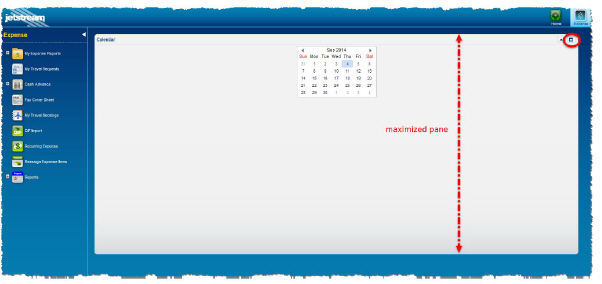
When panes are maximized, they fill the entire Home Page.