
 
|

|
Menus
Menus are a list of options used to perform a specific task. Each Apptricity application comprises common menus and application-specific menus.
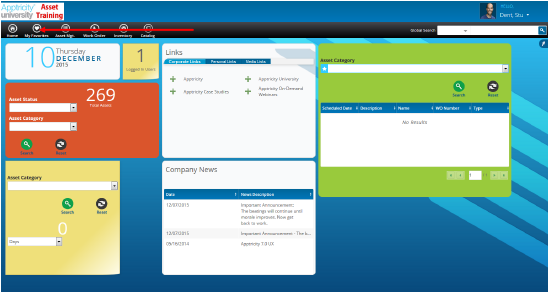
Access menus by hovering over the buttons in the menu bar.
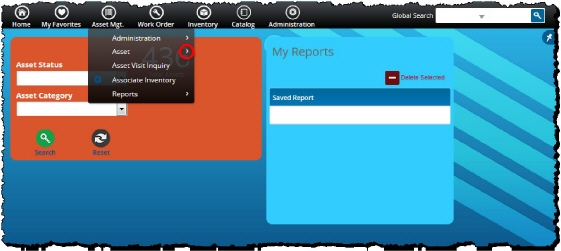
Applications may also have sub-menus that you access from the main menu on the menu bar. If a menu has a sub-menu, you see a right arrow (>) next to the menu item, as indicated in the image below. Sub-menus display additional options used to complete related tasks.
Common Menus
Common menus are those menu items that are shared across all Apptricity applications. Their functions are the same in all Version 7 applications.
Home
When you click the Home menu, a list of your desktops and the desktops you subscribe to are displayed. The selection More displays a panel that enables you to view a list of:
-
Your desktops
-
Desktops available for you to subscribe to
-
Desktops that you are subscribed to
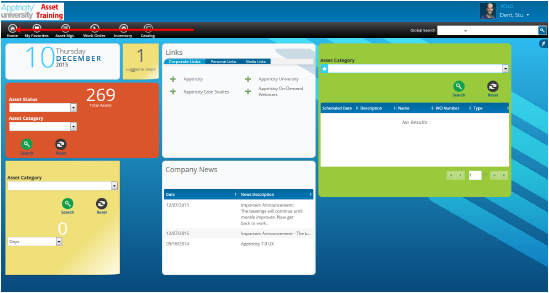

Note that some images in this guide (as in the two above) may include options available only if additional “add-on” licenses are active. Some add-on features include Apptricity Work Order, Apptricity Inventory, and Apptricity Catalog.
My Favorites
When you click the My Favorites menu, a list of panels you have bookmarked is displayed.
For more information, see Customizing Your Desktop.

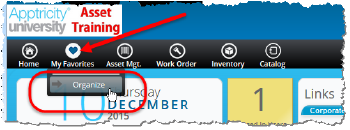
Click the My Favorites button to display the Organize option, which enables you to organize your bookmarks by adding categories and moving your bookmarks to the appropriate category.
Slide-Out Menus
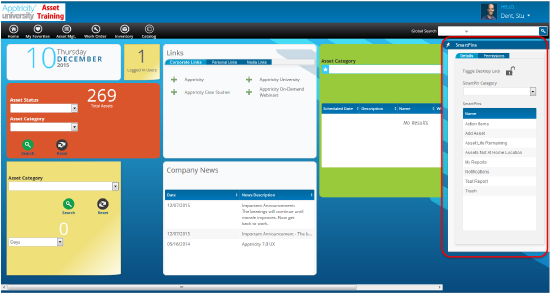
Slide-out menus are located on the sides of screens, and when activated, they appear so that you can select a menu option. They usually display as a tab peeking out from the edge.
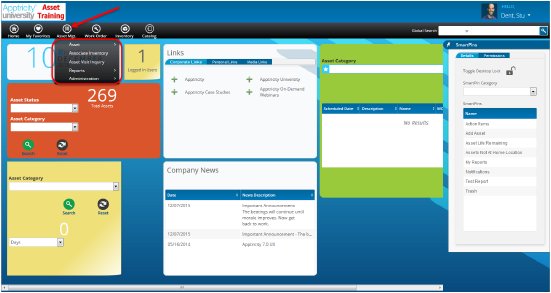
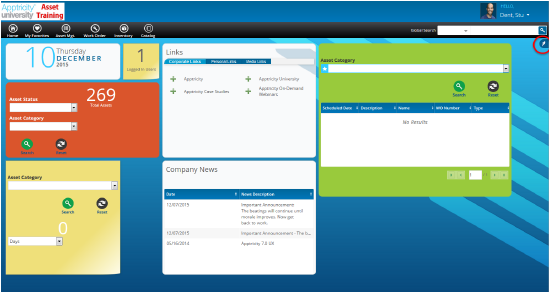
The SmartPins menu is an example of a slide-out menu. It is shown below, first, in its inactive state (circled in red):
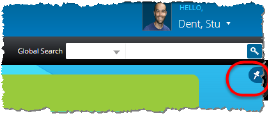
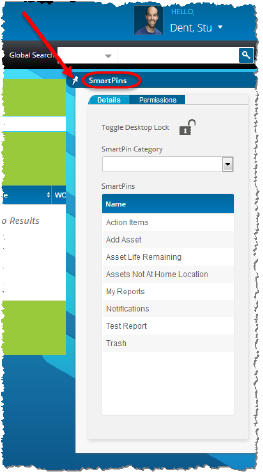
Next is the SmartPins menu in its active state. Click the pin button to make it slide out from the edge of the screen:
Application-Specific Menus
Application-specific menus are found only in the one application you are using. They list options for completing the tasks related to the application you are viewing.
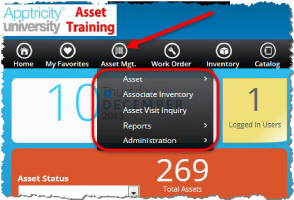
The following is an example of an application-specific menu:
Asset Mgt. (Management)