

 
|

|
Exporting Files
You can export log files and other file types from Apptricity applications. One of the type of files you can export are the various log files found in Asset. To illustrate this feature, we will center our example around a service record for a particular asset in our demonstration database.
Export Log Files
Log files are files in which the application records information in every time you add, edit, delete, or deactivate/reactivate a record. Some log files are kept in the background and can be read only by your System Administrator or Apptricity Professional Services.
Other log files are displayed in your application and can be exported to a Comma Separated Value (CSV) file, which can be opened in a spreadsheet application such as Microsoft Excel.
In Asset, you can export a Service Log to a Comma Separated Value (CSV) file, in case you want to keep a permanent or paper copy.
For example, to export a service log file:
-
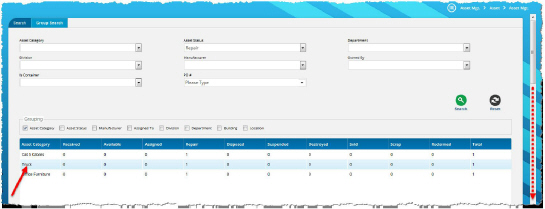
From the Asset Mgt. menu, select Asset, and then Asset Mgt. The Search and Group Search pane is displayed.
-
Enter search criteria and then click Search.
-
Select the asset from the list of search results, and scroll down. (We are interested in details about the black pickup truck.)
-
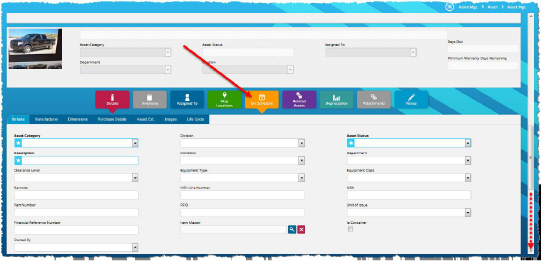
Click Svc Schedule (Service Schedule), and then scroll down to the Services pane.
-
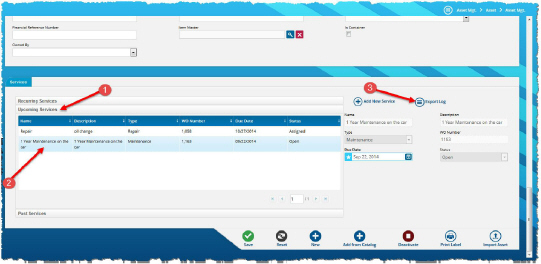
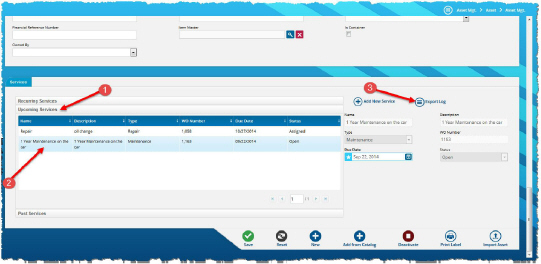
Click Recurring Services, Upcoming Services, or Past Services to view the details. We will choose Upcoming Services.
-
Click the service record log (2).
-
Click Export Log (3).
-
Click Export Log to display the Opening ServiceLog.csv box, and then select the application to Open with (Microsoft Office Excel is the default) to view right away, or Save File.
-
If you want the chosen action (read or save) to be the default action, click to select “Do this automatically...”
-
Click OK.