


|
Recalling an Expense Report
If you have submitted a report that is incomplete or incorrect, you can recall it. Only an expense report that has been submitted — but not approved — may be recalled.
To recall an expense report:
-
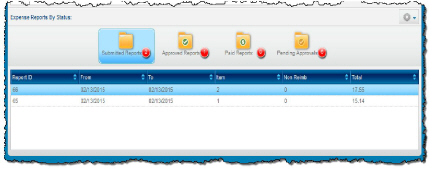
Click the Submitted Reports icon to view the list of submitted reports.
-
Click to select the report you want to recall.
-
Choose Recall Report from the Expense Reports By Status action menu. The report reverts to edit mode, allowing you to make any changes needed. Then you may resubmit the expense report or save it for future editing or submission. If you save the expense report, it is placed in your Open Expense Reports list. If you submit the expense report, it is displayed in the Submitted Reports list.
Here, a report has been returned to the Open Expense Reports list after recall:
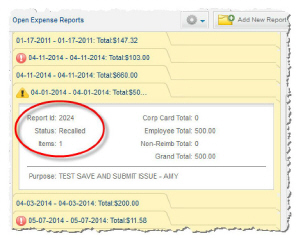
A recalled expense report that has been resubmitted appears in the Submitted Reports list in the Expense Reports by Status pane.